Flaticon locks reusable custom palettes behind a paid plan. This free, open-source extension adds that feature back — plus automatic color history, a full dashboard, and one-click apply, right inside Flaticon's own icon editor.
Private by design — nothing you save ever leaves your browser.
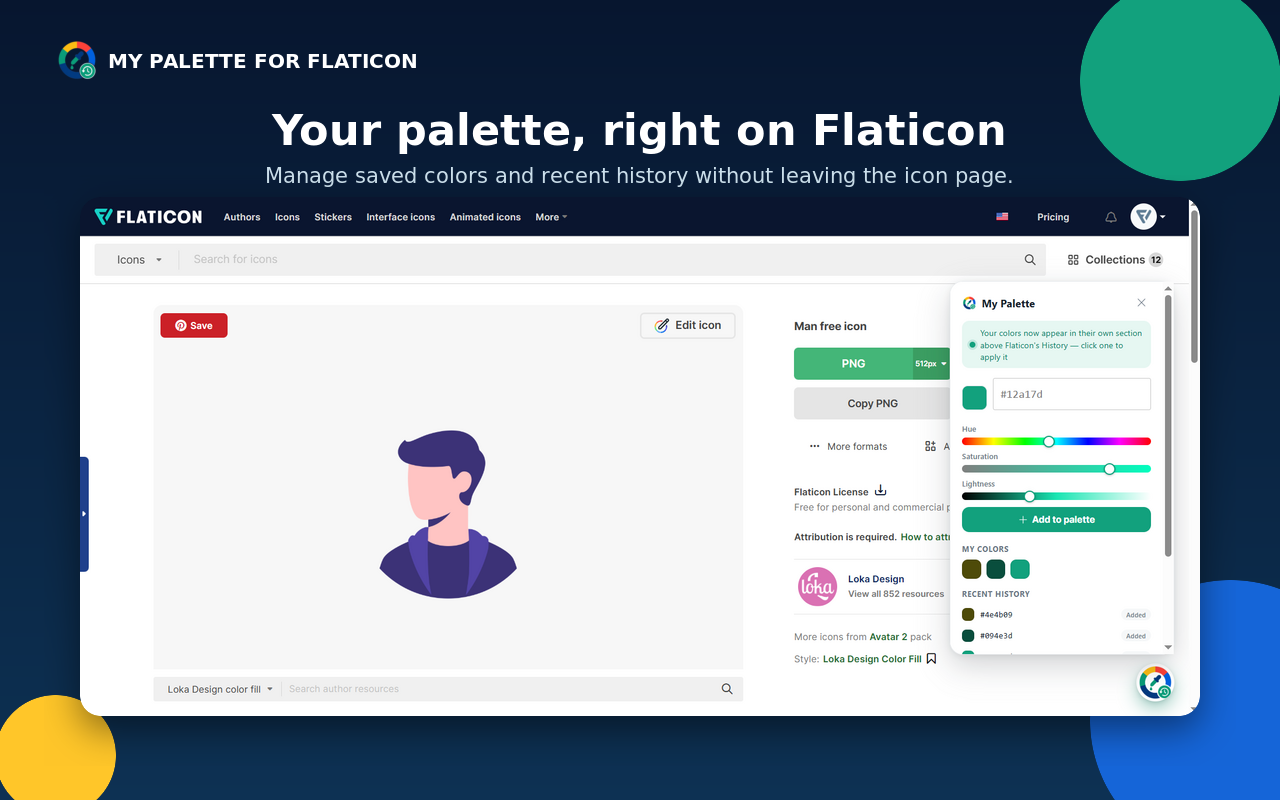
Flaticon's built-in icon editor lets you recolor an icon from the colors already in it, or pick one new color with a color wheel — but saving a reusable custom palette is a paid feature. My Palette for Flaticon adds that missing piece for free, entirely client-side, using only your own browser storage.
Everything the paid "Custom palette" feature offers, and then some.
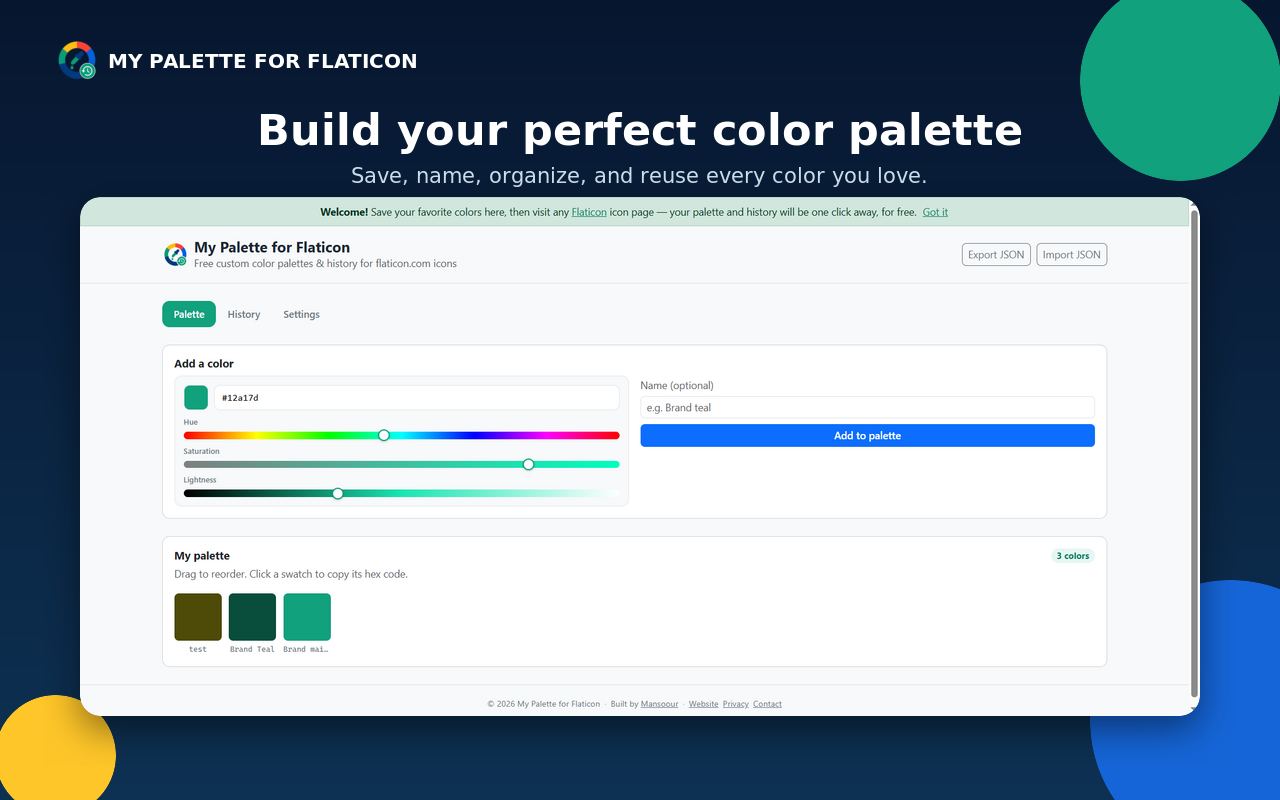
Add any hex color to your personal palette from the popup, the full dashboard, or directly on a Flaticon icon page.
A small floating palette button appears on every flaticon.com page — your saved palette and recent history are always one click away.
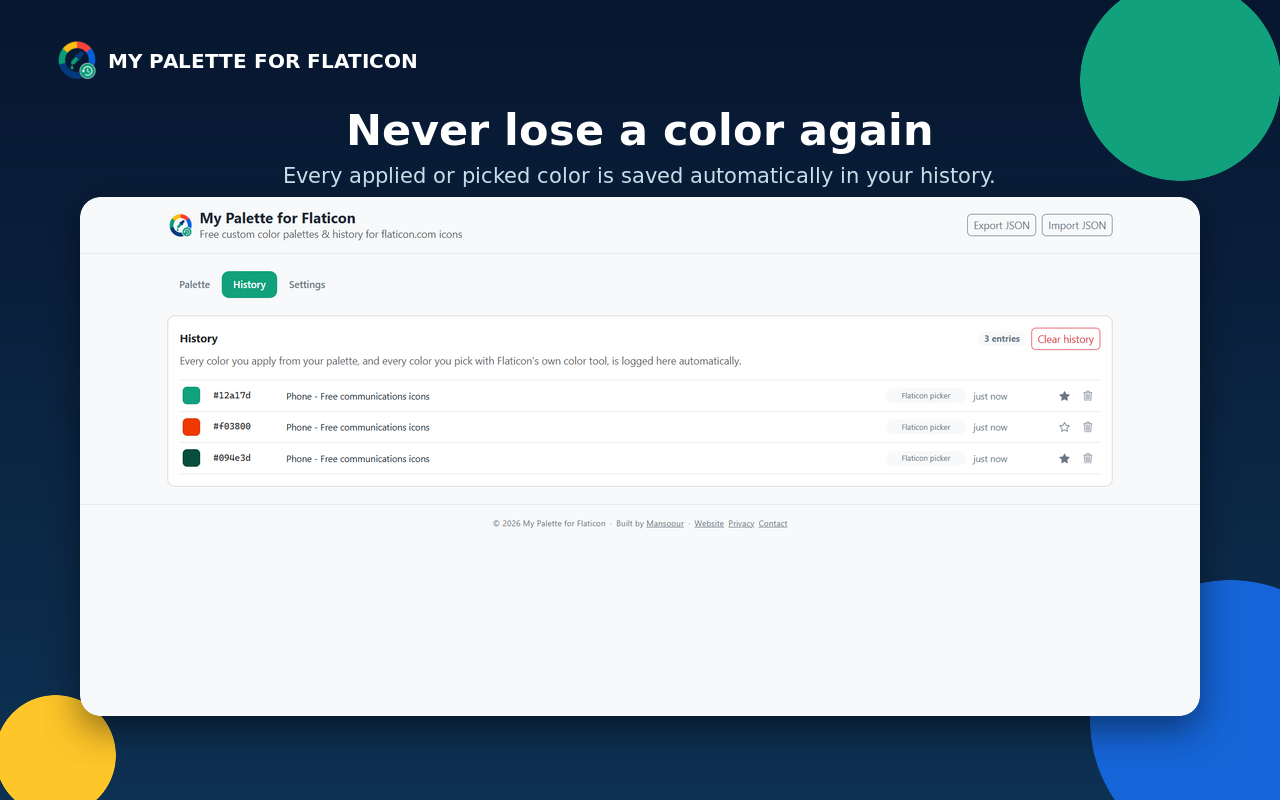
Every color you apply, and every color you pick with Flaticon's own color tool, is logged automatically with a timestamp and a link back to the icon it came from.
Manage your whole palette: add, rename, reorder by drag & drop, delete, and browse or search your full history.
Back up or move your palette and history as a single JSON file, any time.
A hue/saturation/lightness slider picker used everywhere you add a color — no clunky native color-picker dialogs.
Turn the floating panel on Flaticon pages on or off, independent of the "My Palette" section embedded in Flaticon's own editor.
Stored with the standard chrome.storage API. Nothing ever leaves your browser —
there is no backend server.
MIT licensed, no ads, no account required — built with Bootstrap 5, self-hosted, no CDN.
Three layers, so it stays useful even as Flaticon's website evolves.
A small palette button is injected on every flaticon.com page. It works completely independently of Flaticon's own markup: add colors, browse your palette, copy any color to the clipboard, and see your recent history.
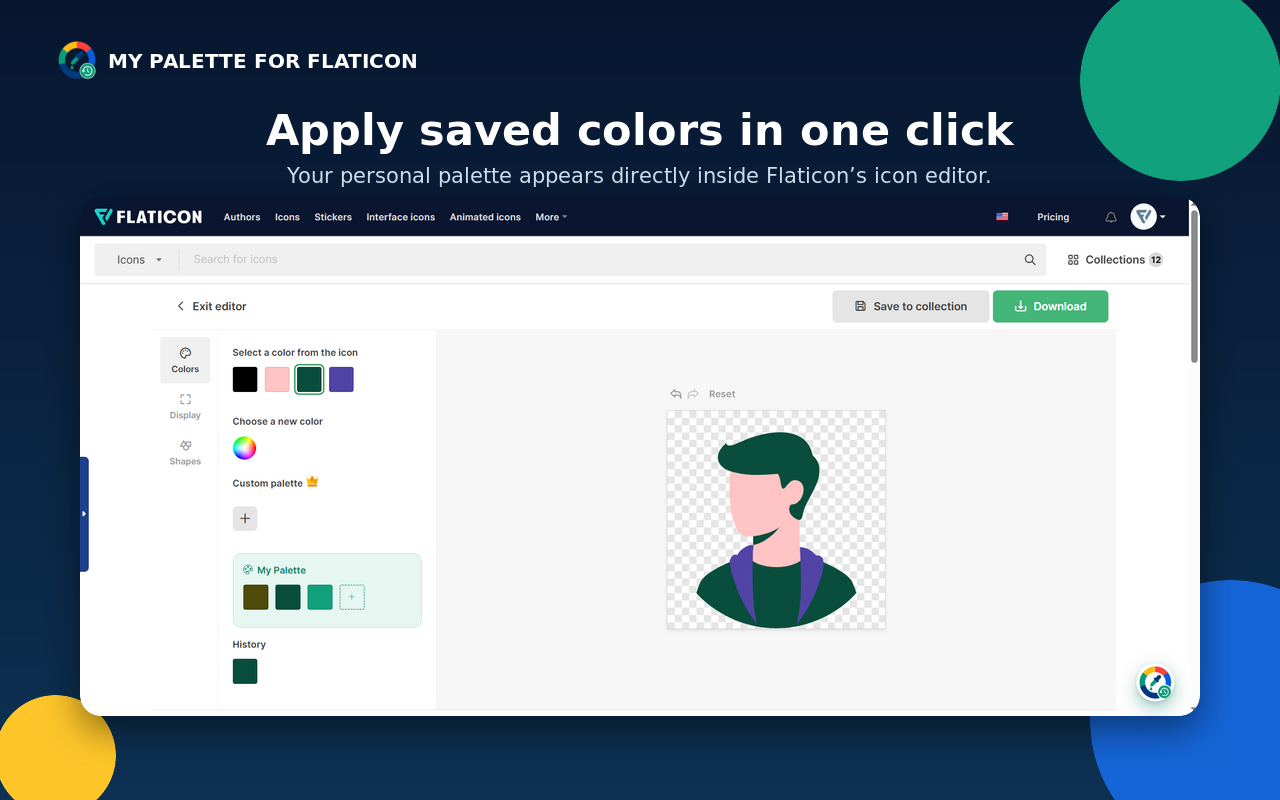
Right above Flaticon's own "History", your saved colors show up in their own section. Click one to apply it to the icon in a single click, no extra steps.
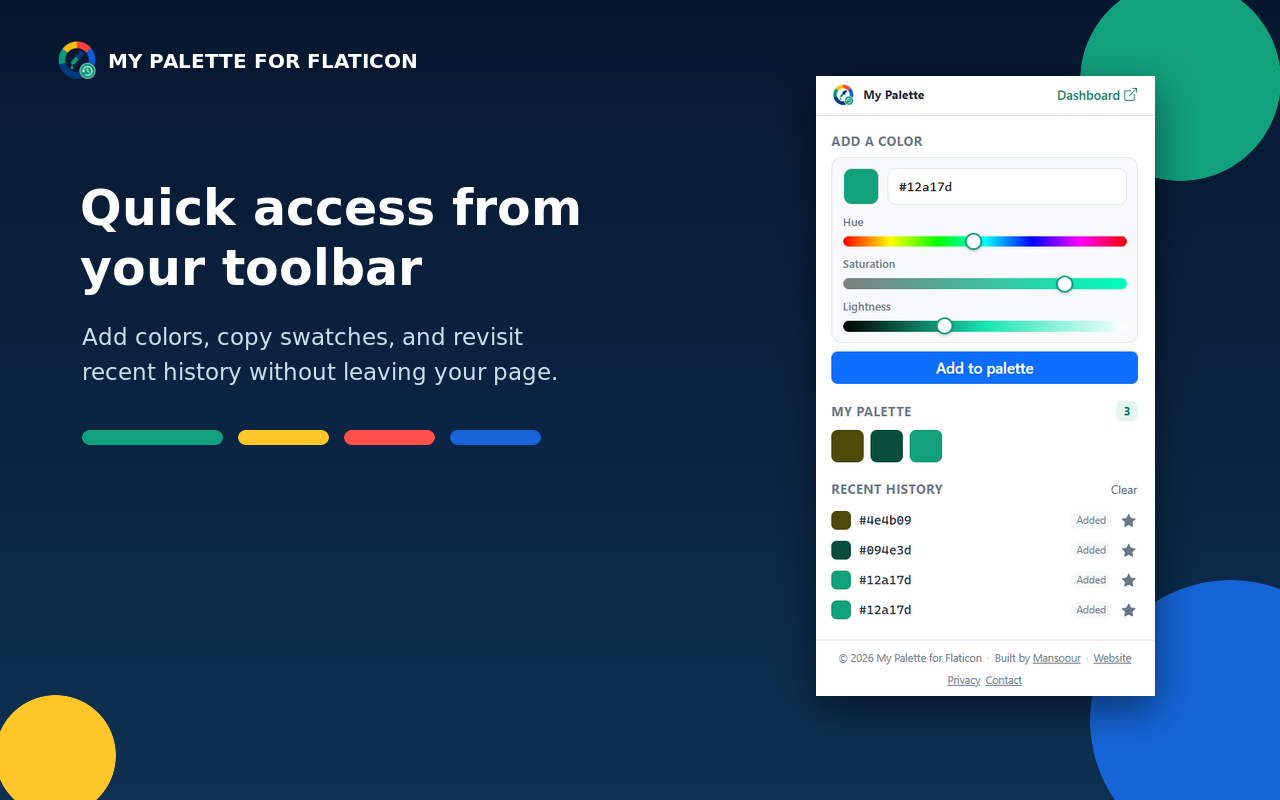
The toolbar popup gives quick access from anywhere. The full dashboard manages your whole palette and history, handles JSON import/export, and has a Settings tab to control the floating panel.
A quick look at the extension in action.
Build your palette in the dashboard
Automatic color history
The floating panel on any Flaticon page
One-click apply inside the icon editor
The toolbar popup
The extension is submitted to the Chrome Web Store and awaiting review. In the meantime, install it from source in a minute — see the GitHub repository for instructions.